
This step by step guide will assist you in keeping track of the amount of data/bandwidth you have used on your dedicated server.
This is important to ensure you don't go over your allocated allowances.
Step 1:
Log into your billing account with us
Step 2:
Navigate to your product on our billing site
Step 3:
You will be presented with the main page (where you can manage the service).
On this page you can see a quick overview of your current usage.
Step 4:
You can click 'View Graph' in order to see a better overview of when you've used data.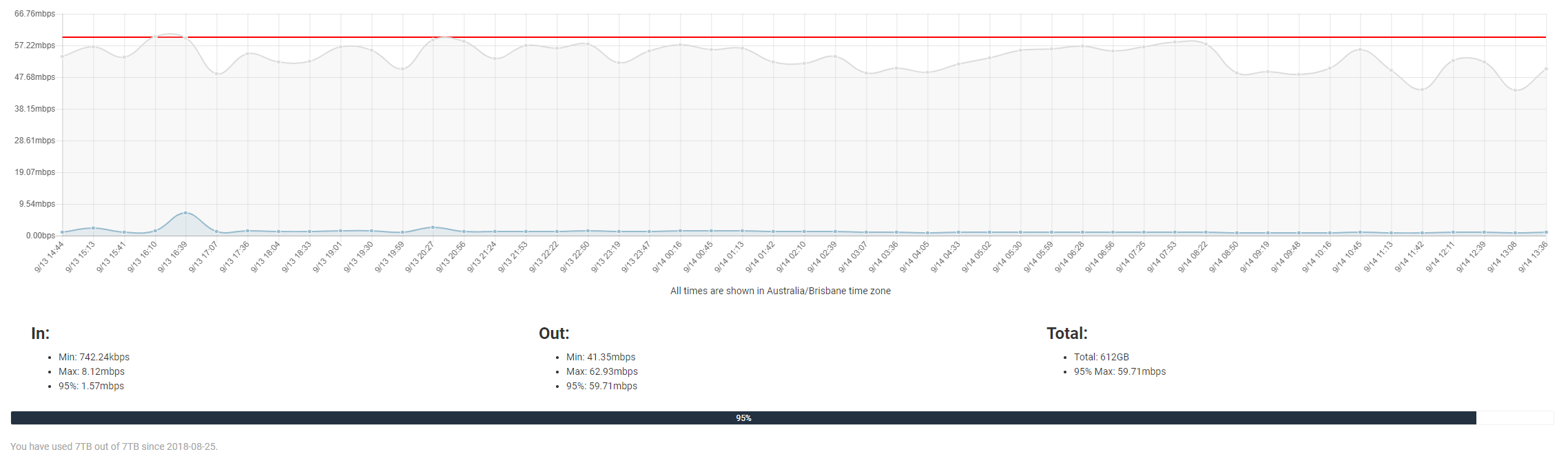
If you are getting close to your allowance, please ensure you contact us so that we can organise a new data pack for you.
Our system will automatically email you when your data usage reached 90%. If you reach 100%, the service will automatically suspend.
Найпопулярніші
Basic Actions on your Dedicated Server
This step by step guide will assist you in a number of basic actions for your dedicated...
How to reinstall the OS
This step by step guide will assist you in reinstalling your dedicated servers OS.Step 1:Log into...
How to add rDNS records to your IPs
This guide will teach you how to add a rDNS record to your dedicated server IPs with Go...
How to change your server IP on Windows
Within this knowledgebase, we’ll go over how to change the IP of your Windows Machine.  1)...
How to resolve Black Screen / An internal error has occurred / Laggy / Slow / Disconnection issues with RDP on Windows
Within this knowledge base, you'll learn how to resolve Black Screen / An internal error has...


