
We currently use Supermicro machines exclusively for our dedicated servers.
Due to this, we offer the ability for clients to access their servers remotely via 'IPMI' in the case of your system being unresponsive.
Note:
You will require JAVA to be installed on the computer you are using to access IPMI
Step 1:
Log into your billing account with us
Step 2:
Navigate to your product on our billing site
Step 3:
You will be presented with the main page (where you can manage the service)
Click the 'Manage on SynergyCP' button.
Step 4:
Click the 'Launch KVM' button on the far right.
Step 5:
Once clicked it request if you wish to save the file.
Press 'Yes' and allow any security prompts that come up about the file.
Step 6:
Once saved, double-click the file. It will request permission to start. Click 'Run'
Step 7:
This will then launch the IPMI program. Using this you can log into your dedicated server or process additional requirements (such as manually installing an OS).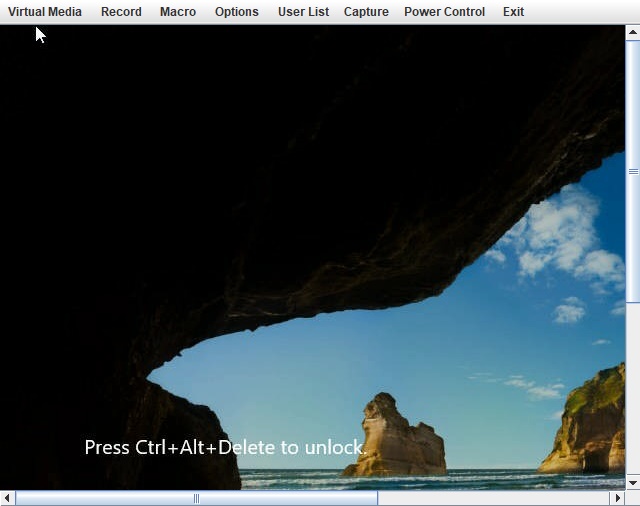
If you require further assistance, don't hesitate to contact our support team.
Beliebteste Artikel
Basic Actions on your Dedicated Server
This step by step guide will assist you in a number of basic actions for your dedicated...
How to Check your Data Usage
This step by step guide will assist you in keeping track of the amount of data/bandwidth you have...
How to reinstall the OS
This step by step guide will assist you in reinstalling your dedicated servers OS.Step 1:Log into...
How to add rDNS records to your IPs
This guide will teach you how to add a rDNS record to your dedicated server IPs with Go...
How to change your server IP on Windows
Within this knowledgebase, we’ll go over how to change the IP of your Windows Machine.  1)...


