
Note:Â Please stop your server prior to making these changes.
Note: You need to own two Ark servers, hosted on the same box.
Note:Â This has only been tested with official maps.
Step 1:
Log into your game panel and click 'stop' on your service.
Step 2:
Check that both of your servers are running on the same ServerID by clicking the "Cluster Information" button on the home screen of the control panel for each server.
If both servers have the same ServerID you can proceed, if not enter a support ticket and ask for your services to be moved to the same server.
Step 3:
Once both servers have the same ServerID, you need to create your "Ark Cluster Folder". This can be done by clicking the "Create Cluster Folder" on your control panel.
This will create, and let you know the directory of your Ark Cluster Folder. This only needs to be done on one server.
Note:Â If you forget this information, you can click the "Cluster Information" button on the front page of your control panel.
Step 4:
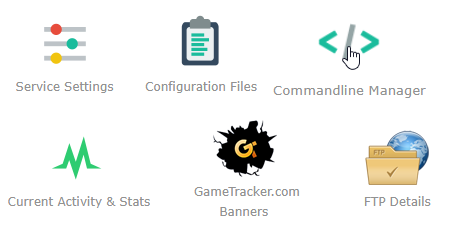
Select Commandline Manager from the icons
Step 5:
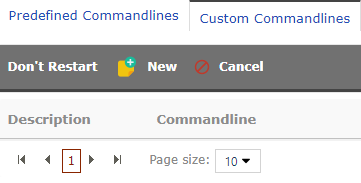
Once in the Commandline Manager select 'Custom Commandlines'
Step 6:
You will then be presented with the following. Select New
If you already have a custom command line set, there will be an edit button next to it.
Step 7:
Scroll down until you find 'Cluster Directory' enter your Cluster Directory, This can be found using the Cluster Information button on the front of your control panel.
Click the tick to the left.
Note: This needs to be set the same on both servers commandlines.

Step 8:
Find 'Cluster ID' and enter a unique ID for your cluster.
Click the tick to the left.
Note: This needs to be set the same on both servers commandlines.

Step 9:
Find 'NoTransferFiltering' and tick both the check box to the left and right.
This setting stops players from transferring characters etc from servers outside of the cluster
Note: This needs to be done on both servers.

Step 10:
Remember to change one of the server's maps to ScorchedEarth_P
Save the 'Custom Commandline' at the bottom of the page on both servers.
Step 11:
Make sure you press Select on the right hand of the new Custom Commandline you just made on both servers.
Step 12:
Open your GameUserSettings.ini, If you have the following set, it needs to be removed.
Make sure these are also not set in your Commandline Manager or are False.
NoTributeDownloads=True
PreventDownloadSurvivors=True
PreventUploadSurvivors=True
You can also use the following settings under the [SeverSettings] header to adjust what players are allowed to transfer between your clusters.
PreventDownloadItems=False
PreventDownloadDinos=False
PreventUploadItems=False
PreventUploadDinos=False
Step 13:
Go back to the front page of your control panel, and start your server.


